You will see the steps required to connect Salesforce with Slack
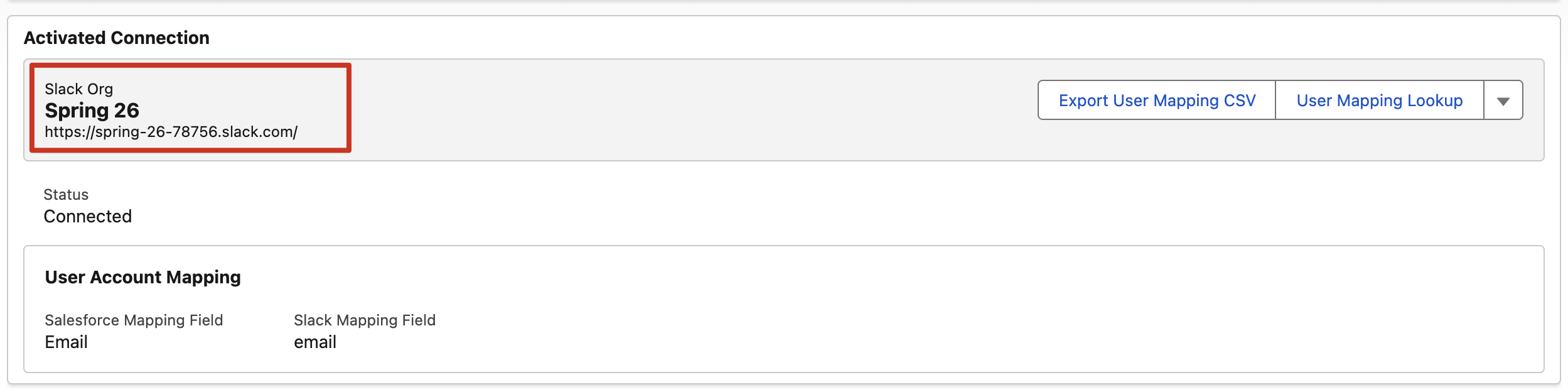
Step 3: Open Your Connected Slack Workspace
In many Salesforce trial orgs, a Slack workspace is already created and connected.
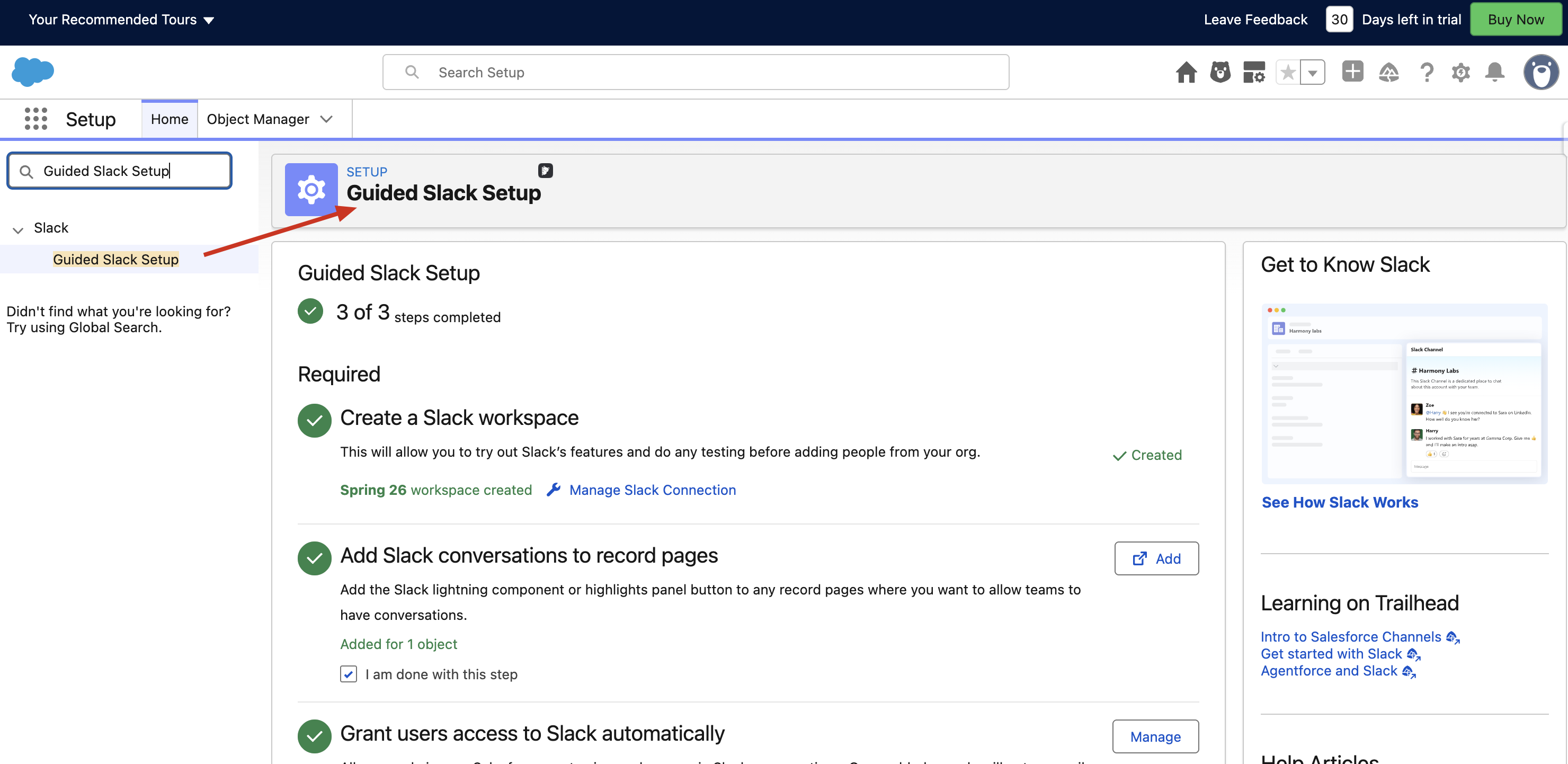
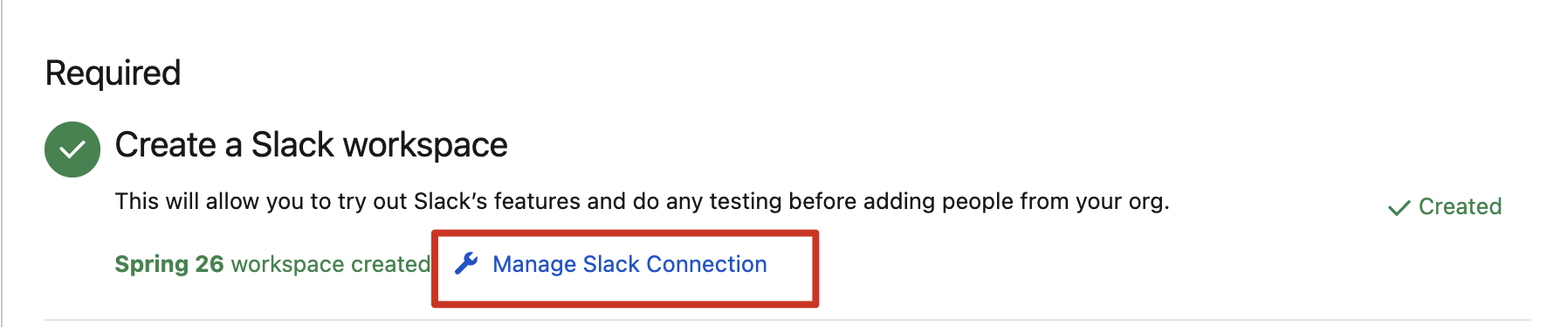
On the Guided Slack Setup page, click:
Manage Slack Connection
You will see details like:
Slack workspace name
Workspace URL
Connection status
Click the Slack workspace URL and log in.
Then return to Salesforce.
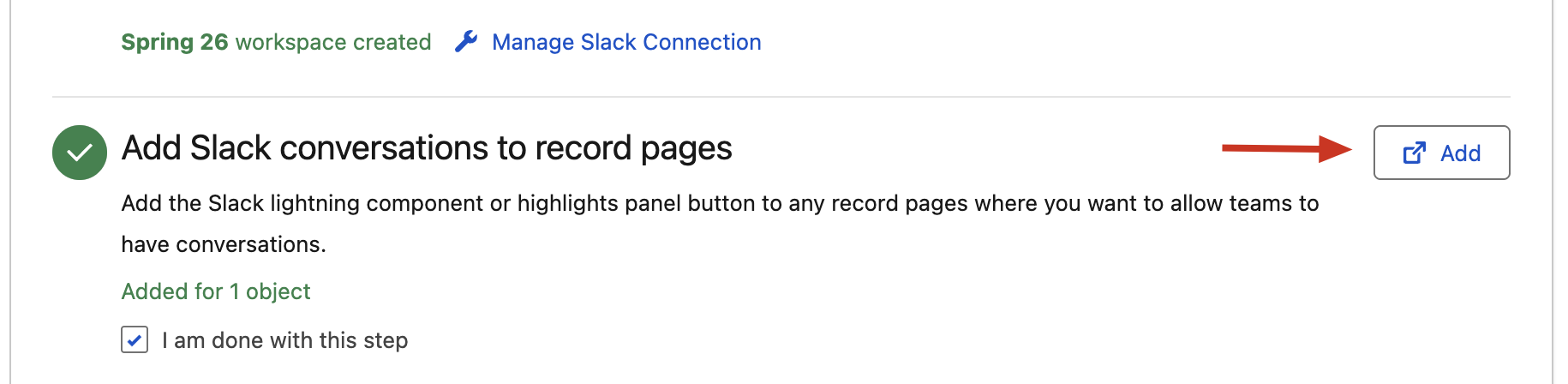
Step 4: Add Slack to a Salesforce Record Page
Go back to Guided Slack Setup.
Add Slack conversations to record pages Click Add.
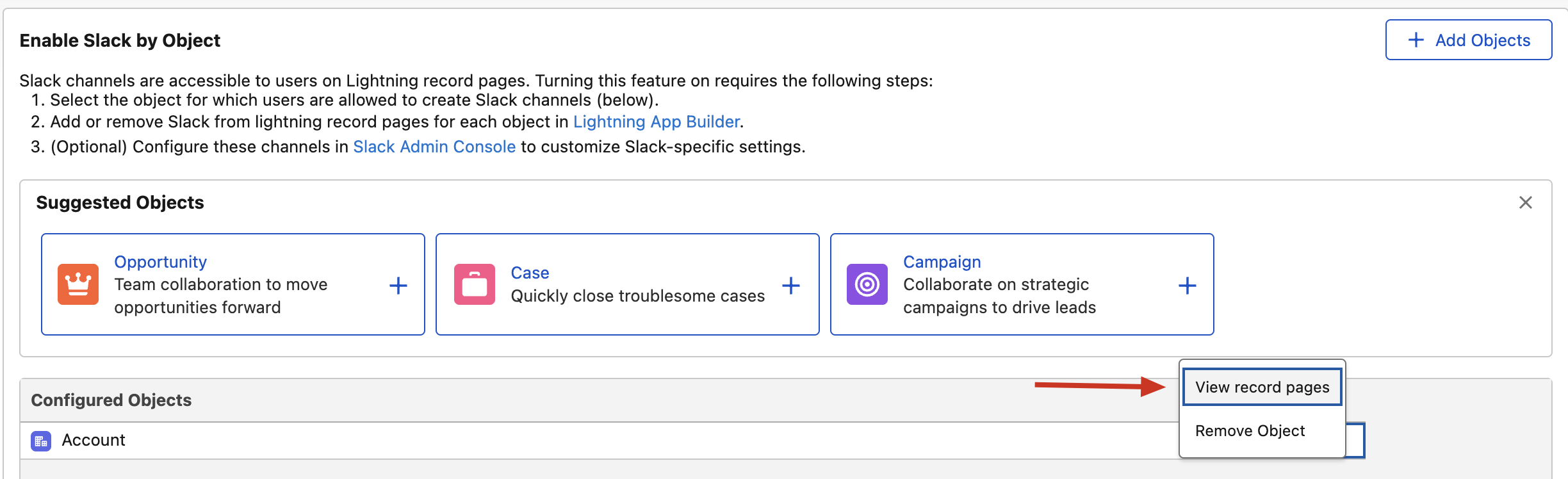
Now select the Salesforce object where you want to use Slack. For this example, select: Account
Then open the Account record page
Step 5: Add the Slack Component
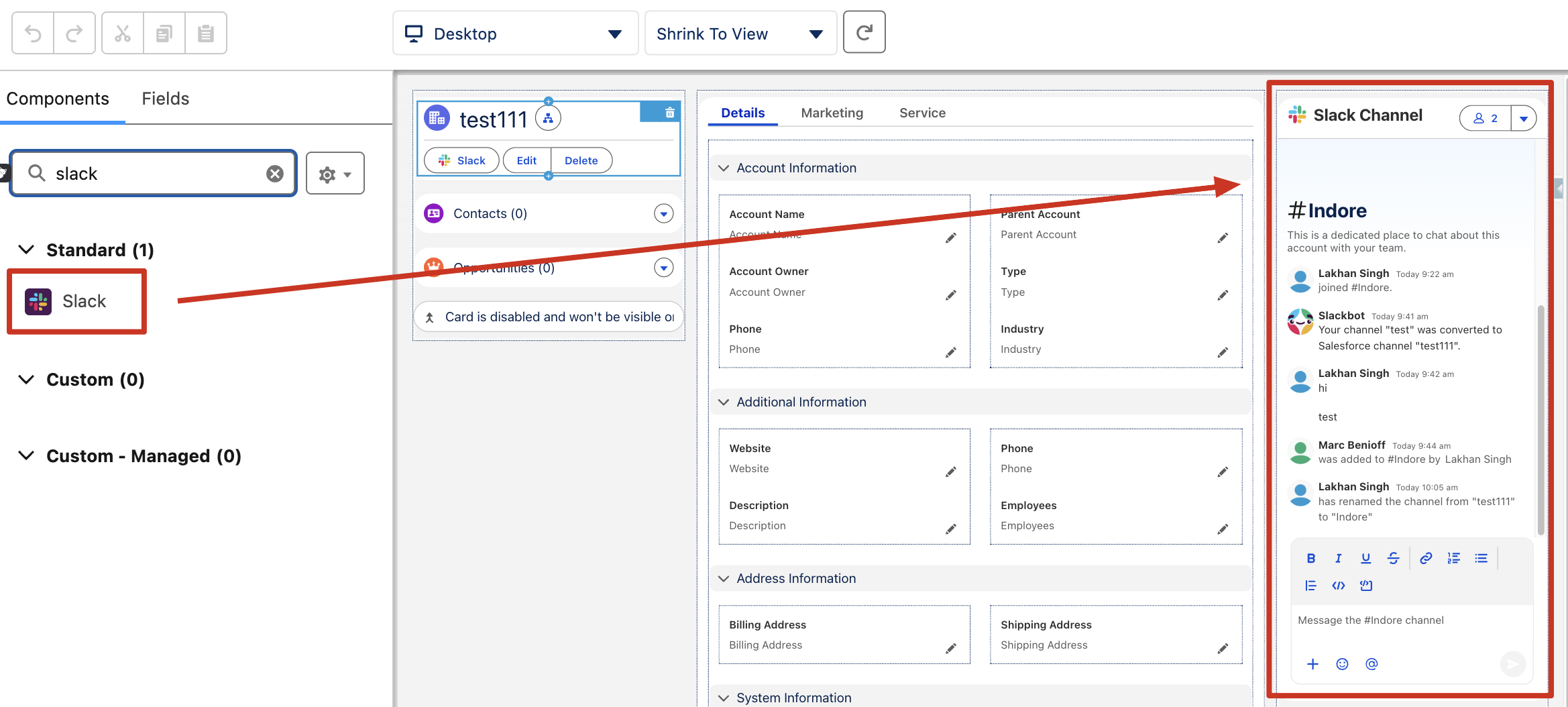
The page will open in Lightning App Builder.
Search for Slack in the component list.
Drag the Slack component onto the page.
Place it where users can easily see it.
Click Save.
Click Done.
Return to Guided Slack Setup and mark the step as complete.
Step 6: Test Slack in Salesforce
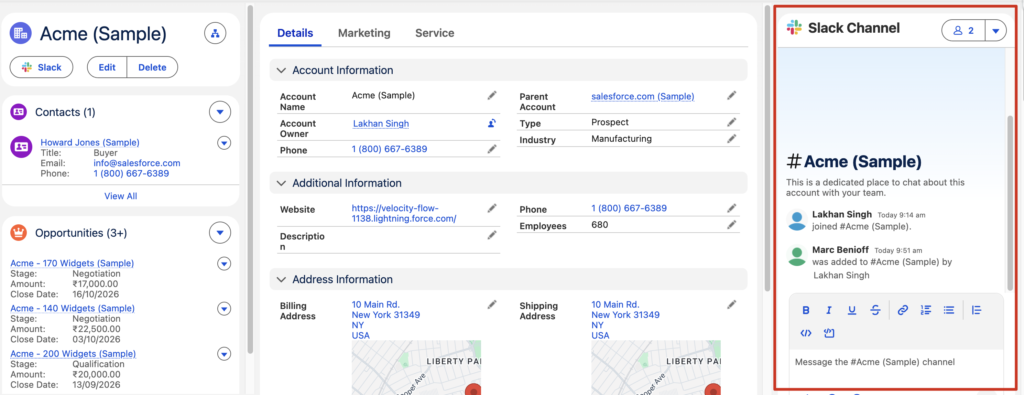
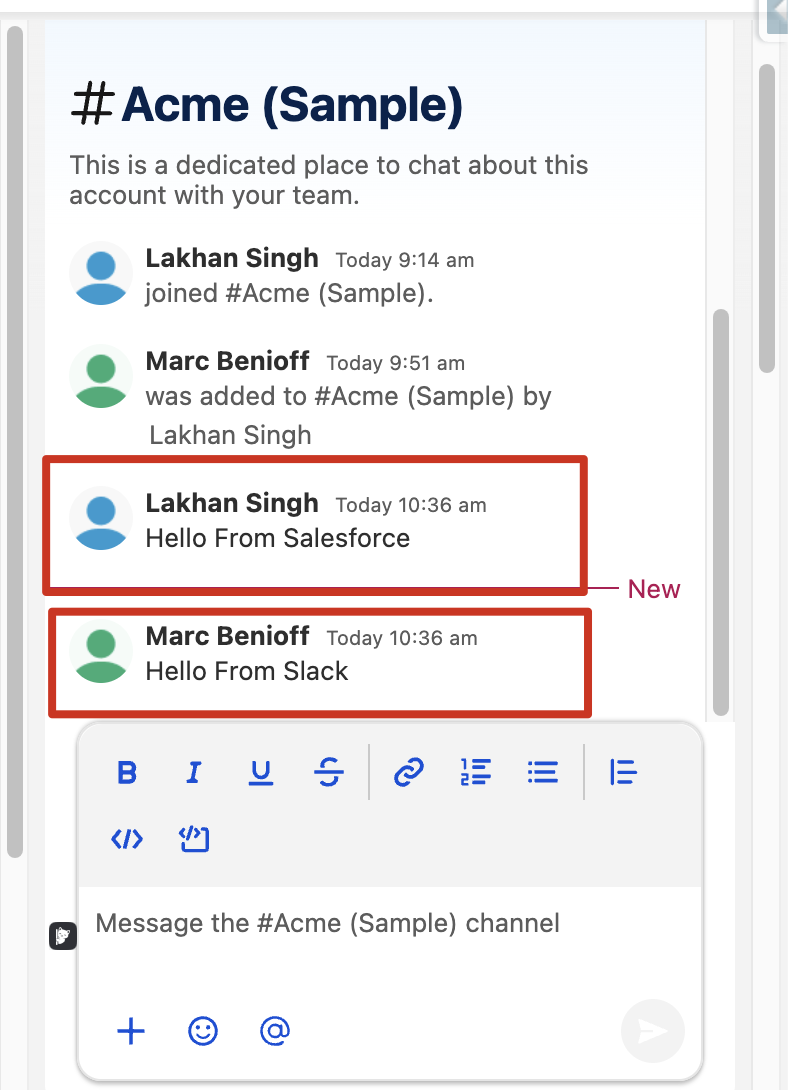
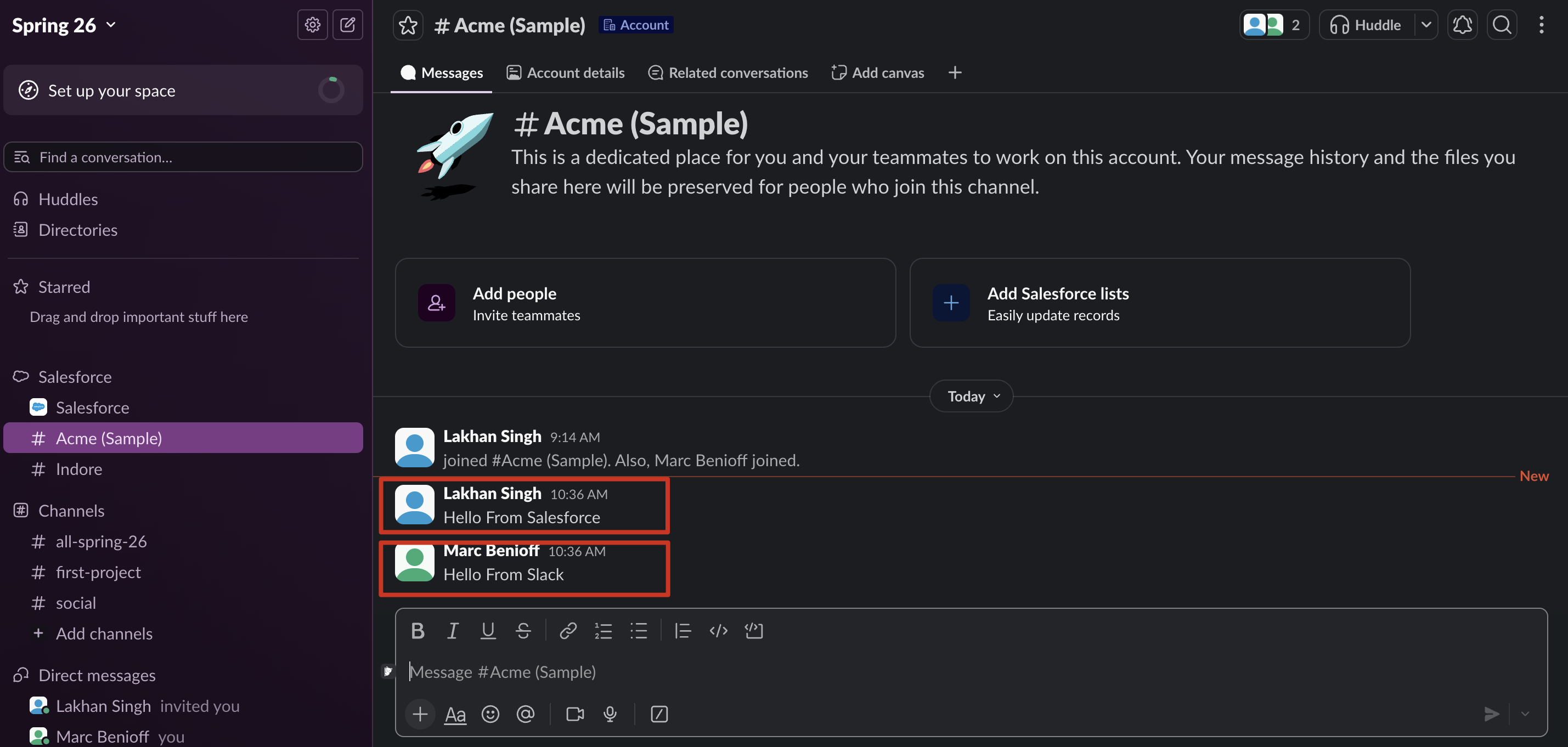
Open the App Launcher. Search for Accounts and open any Account record. You should now see the Slack component. From here, you can connect or create a Slack channel for that Account. Messages sent from Salesforce can appear in Slack. Messages sent in the connected Slack channel can also appear in Salesforce. This keeps the conversation connected to the correct Account record.
Step 7: View Salesforce Data in Slack
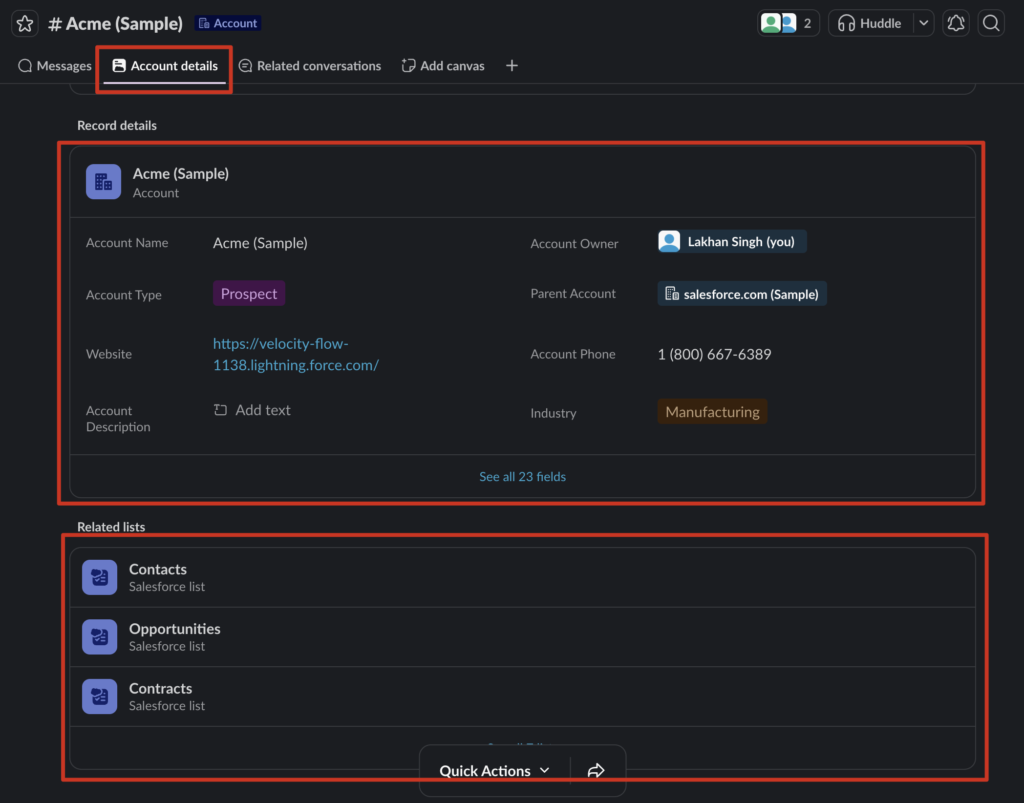
After the connection is complete, Salesforce options will appear inside Slack. Users can view Salesforce records such as Accounts directly from Slack. Depending on their permissions, they may also update record details.
Changes can sync both ways:
Update in Salesforce → visible in Slack
Update in Slack → visible in Salesforce
Benefits of Slack and Salesforce Integration
Less App Switching: Users can work with Salesforce records without leaving Slack again and again.
Better Team Collaboration: Conversations stay connected to the correct Salesforce record.
Faster Updates: Teams can view and update information from either Salesforce or Slack.
Better Productivity: Users spend less time switching apps and searching for information.
Secure Access : Salesforce permissions still control what each user can view or update.
Lakhan Singh is a Salesforce Developer from Indore, specializing in Apex, Lightning Web Components. He is a continuous learner who enjoys building scalable Salesforce solutions that support business growth and improve customer satisfaction.
When working with Salesforce, identifying whether your organization is a sandbox or a production environment prevents errors and ensures that your actions affect the correct data set.Why It's Important to
Salesforce has announced a major update to its certification program in 2025: many Salesforce certification names are changing. Effective July 21, 2025, Salesforce is refreshing the names of several certifications
In any Salesforce setup, it’s common for essential information to go unnoticed among multiple fields. Conditional Field Formatting helps you make specific field values stand out visually — using icons,