

Salesforce Winter ’26 is here, bringing another round of updates designed to make everyday admin tasks more efficient.
This release focuses on enhancements to Salesforce flow builder, Reports and Dashboards, Field History Tracking, and List Views — essential tools admins rely on to manage data and maintain operational clarity.
To help you stay ahead, we’ve reviewed the Winter ’26 release notes and selected the most impactful features for admins. Understanding these updates now will prepare you to implement them seamlessly when they reach production.
Multi-Column Sorting in List Views
Salesforce now supports sorting list views by up to five columns, allowing you to organize records with greater precision. This update is available in Lightning Experience for all editions except Starter and Pro Suite.
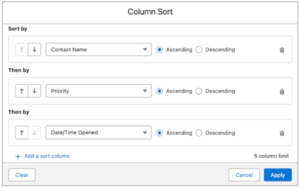
To apply multi-column sorting, open a list view. Select Column Sort and choose up to five fields, defining ascending or descending order for each. To remove the custom sort, open List View Controls and choose Reset Column Sorting, or click a column header not included in the current sort.
Examples:
Arrange cases by Contact Name, then Priority, followed by Date/Time Opened.
Order opportunities by Close Date and then Amount.
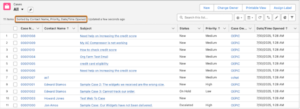
The sorting setup remains in place until you update or clear it.
Configure Salesforce List Views faster with Type-Ahead Search
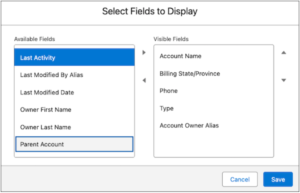
You no longer need to scroll through long field lists when editing or creating a list view. Now, you can type the first character of a field name in Available Fields or Visible Fields, and the focus moves directly to the first matching field alphabetically.
Previously, type-ahead search was not available when selecting fields for a list view.
Available in Lightning Experience for all Salesforce editions. Here’s how you can do it:
From a list view, open List View Controls and select Select Fields to Display. In Available Fields, type a character to jump to the first matching field.
Type the same character again to move further down the list. Press Ctrl+Space to select the focused field.
This feature supports all languages and characters supported by Salesforce. It only matches on the first typed character, and entering a different character jumps to that section of fields.
Automate Salesforce flow Decisions with Generative AI
Salesforce now lets Decision elements in Flows analyse unstructured data using Generative AI. Instead of routing cases based only on structured fields like Case Type, the Decision element can evaluate sentiment, key phrases, and context to choose the correct next step.
Example: In a customer service flow, Generative AI reviews incoming emails, identifies tone or urgency, and routes cases to the right team. This works like an experienced agent deciding how to handle a customer request.
Works in Lightning Experience for Enterprise, Performance, and Unlimited editions with Einstein add-ons. Contact your Salesforce account executive to enable Generative AI.
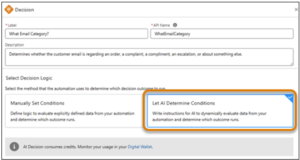
To configure this feature, follow the official Salesforce setup guide: Set Up Dynamic Decisions
How to Use Newly Created Records in Salesforce Flows
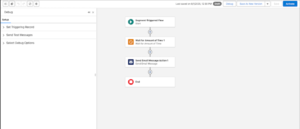
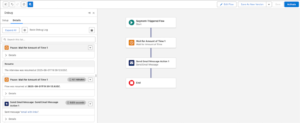
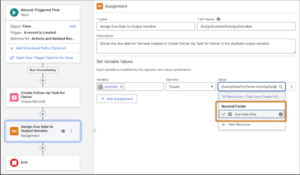
When you create records in a flow, you can now reference their fields right away—no need to add a separate Get Records element. This update makes flows simpler and more responsive.
We can use it in Lightning Experience and Salesforce Classic in all editions. Here’s how you can do it:
In Flow Builder, add a Create Records element.
Use the record’s fields directly in later elements of the flow.
Example: If a flow creates a follow-up task for a high-priority case, you can reference the task details immediately to set the due date or assign it to the right user.
Create Draft Flows in Salesforce with Einstein Next Generation (Beta)
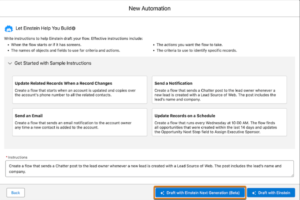
Einstein Next Generation (Beta) helps you build flows faster by converting your business requirements into clear tasks. It generates record-triggered or schedule-triggered flow drafts based on your instructions, which you can review or adjust before finalizing. You can also start with sample prompts and modify them as needed.
It is available in Lightning Experience for Essentials, Pro Suite, Professional, Enterprise, Performance, Unlimited, and Developer editions with Foundations or Agentforce 1 Editions. Check with your Salesforce account executive for availability in Agentforce 1 Editions.
What to Know:
- Pilot or Beta Service: Use of Einstein Next Generation is covered by Salesforce Beta Services Terms or a Unified Pilot Agreement, along with the Product Terms Directory.
- Credits Required: Drafting flows with Einstein uses Einstein Request credits, the standard usage metric for generative AI. Credits are consumed in both production and sandbox environments.
Trigger a Flow when a File is added to a Salesforce record
You can now trigger a flow automatically when a file is attached to a record. The flow can run based on file type, file extension, file name, or the Created By field. Here’s how you can do it:
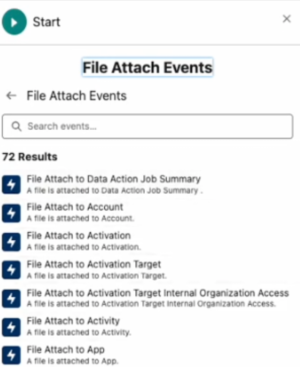
Build your flow using the Automation Event-Triggered Flow option. In the Start element, select Event Library.
Choose File Attach and select a required File Attach event. Set the conditions for triggering the flow.