

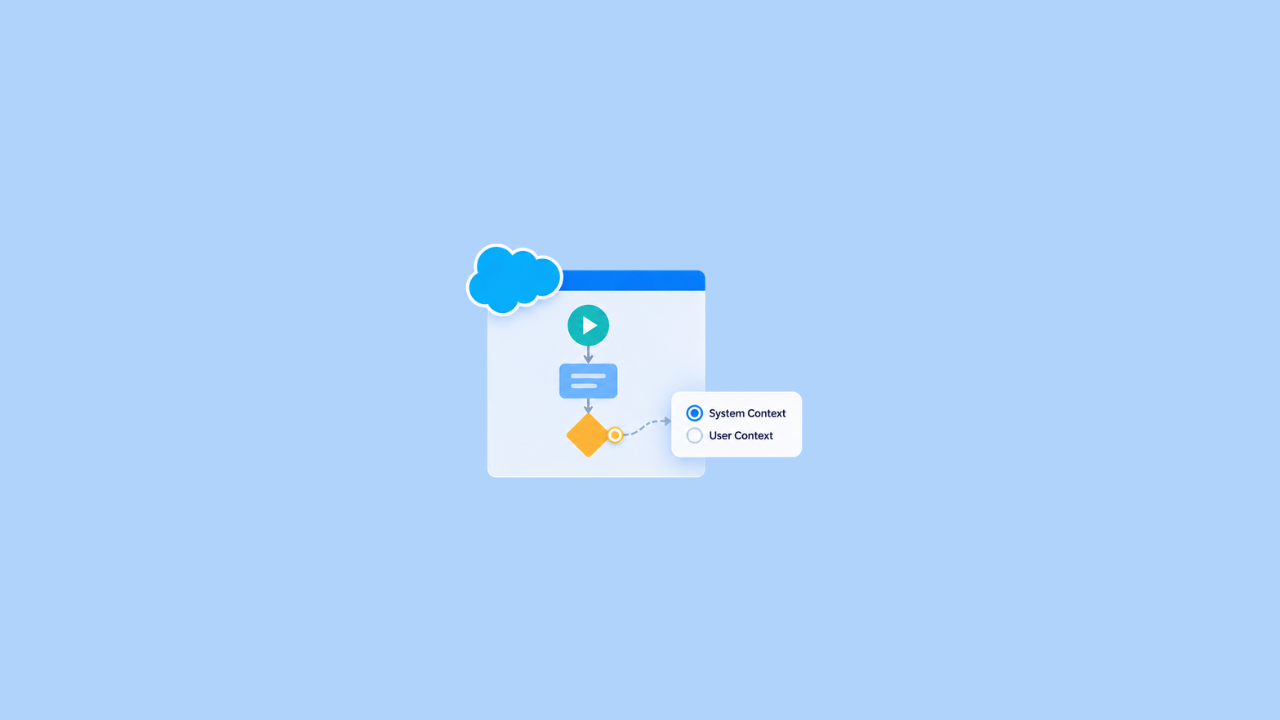
Flow Builder lets you override a flow’s default run context and choose whether it runs with the launching user’s permissions or with system-level access.
Understanding Flow Run Context
Every flow runs in a context that determines what data it can access.
- User context: Runs with the launching user’s permissions. Object access, field-level security, sharing rules, and role hierarchy apply.
- System context: Bypasses the user’s object and field permissions. With sharing, record-level sharing still applies. Without sharing, the flow can access all records.
Salesforce sets the context based on how the flow is launched. For example, a flow launched from a Lightning page runs in user context, while a record-triggered flow runs in system context without sharing. A flow can also inherit elevated access from a system-context caller. Use User Context – Enforces User Permissions when the flow must always run with the user’s access.
Prerequisites
You need the Manage Flow permission to create, edit, activate, or deactivate flows. This includes flows that use Einstein and Agentforce for Flow. Availability depends on the Salesforce edition.
Steps to Set the Run Context
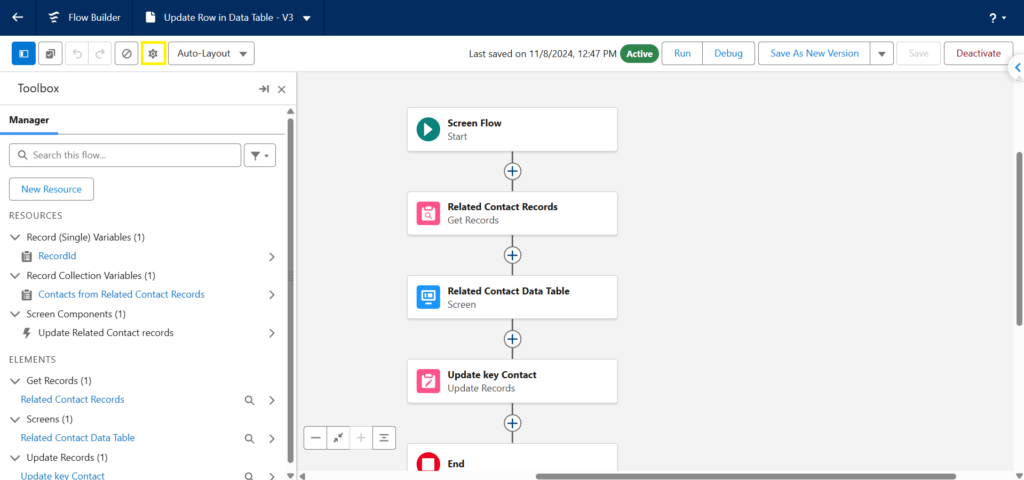
- Open the flow in Flow Builder and Click View Properties.
Click on Show Advanced.
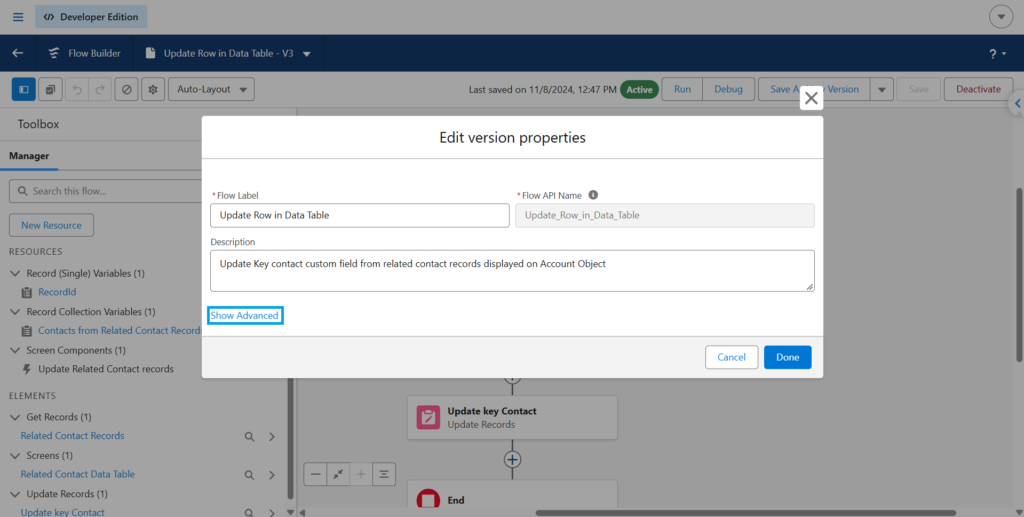
In How to Run the Flow, select a context. Save the flow.
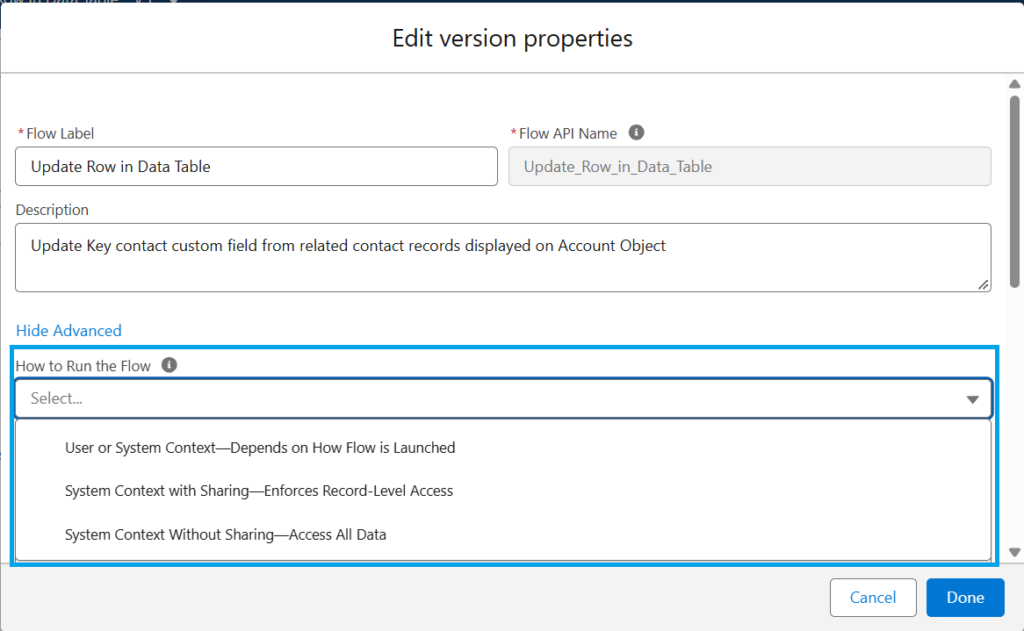
If the dropdown isn’t available, that flow type doesn’t support changing its run context.
Run Context Options Explained
| Option | What It Does |
|---|---|
| User or System Context | The launch method determines the context. |
| User Context – Enforces User Permissions | Always runs with the launching user’s access, even when called from a system-context flow. Available for screen and autolaunched flows on API version 68.0 and later. |
| System Context with Sharing | Ignores the user’s object and field permissions but respects sharing rules and role hierarchy. |
| System Context without Sharing | Runs without the user’s object, field, or record-level sharing restrictions. |
Choose User Context – Enforces User Permissions when a flow must not gain elevated access. Use a system context when the flow needs access to records or fields that the user cannot access.
Default Run Context by Launch Method
| Launch Method | Default Context |
|---|---|
| Apex | Depends on the code |
| Experience Cloud site | User |
| Embedded in a custom Aura component | User |
| Embedded in a Visualforce page | User |
| Custom button | User |
| Custom link | User |
| Direct link | User |
| Flow action | User |
| Lightning page | User |
| Platform event | System, without sharing |
| Process Builder process | System, without sharing |
| Record-triggered | System, without sharing |
| REST API | User |
| Apex method of a custom Aura component controller | Depends on the code |
| Apex method of a Visualforce controller | Depends on the code |
| Schedule-triggered | System, without sharing |
| Web tab | User |
Best Practices and Limitations
- Experience Cloud: Be careful when screen flows or triggerless autolaunched flows run in system context because they can expose data to external users. Limit access to the records and fields the flow needs.
- Lightning components: Screen components and local actions run in user context and don’t follow the flow’s run-context setting.
- Apex: Apex-launched flows can bypass object and field permissions depending on the Apex code and sharing settings.
- Inherited sharing: An invocable Apex method using inherited sharing can run with sharing even when the calling flow runs without sharing.
- Chatter: The Post to Chatter action runs in user context regardless of the flow’s run-context setting.
- Context inheritance: A flow using User or System Context can inherit elevated access from a system-context caller. Use User Context – Enforces User Permissions when the flow must always enforce the running user’s permissions.